We’re very grateful to Steve M6UEH for putting together the following guide on how to get started with the popular handheld radio – hopefully this will be of great help to first-time users of this powerful, low-priced amateur radio handheldGetting Started with the UV-5R Baofeng UV-5RHere are a few notes to get you started on your UV5R, and I hope you find these useful.I purchased my UV5R over the internet from a UK supplier. It came complete with the USB drivers CD and the programming cable.
I then had to download the programming software. I went to the Baofeng web site for this.
It downloaded with no problem.You don’t have to use a PC to configure your transceiver, but it helps. If you wanted to setup your transceiver via the units own keypad. The info that follows will take you through the procedure.There are a couple of options that are turned on by default that it’s best to turn off. Having these on will make operating the radio annoying either to you or to the people you’re talking to.There are three settings for eliminating repeater tail tones or courtesy tones. It is not exactly clear what the differences are in these settings, but you want to turn them all off. There is also a “roger beep” setting that you also want to disable.
These are menus 35, 36, 37, and 39. Set all of these entries to 0:. Press “Menu”, “3”, “5”, “Menu”, “0”, “Menu”.
Press “Menu”, “3”, “6”, “Menu”, “0”, “Menu”. Press “Menu”, “3”, “7”, “Menu”, “0”, “Menu”. Press “Menu”, “3”, “9”, “Menu”, “0”, “Menu”.A Note About the Menu KeyWhen the Menu key is pressed, the radio will say “Menu”. This key also functions as “Enter”. Thus, after modifying a menu option, press the Menu key again to accept the change. The radio will say “Confirm” to acknowledge a change in a menu’s parameters.Also be aware that the menu will stay active for a good 10 seconds after changing a menu option. Thus, if you’re changing several menu options in a row, it may not be necessary to press the menu key at the beginning of each operation.
You’ll know that the menu has exited if the radio beeps after a length of inactivity in the menu. Changing Channels Or FrequencyYou can set the frequency by using the up/down buttons or by entering the frequency or channel number directly. Note that the numbers speak when pressed.
Enter six digits for frequency, i.e. 146520 or 444100, and three digits for the channel number, i.e. 001, 024, or 114.For frequencies in a 6.25 KHz channel spacing, like 467.7125, enter six digits, such as 467.712. If you have the channel spacing (Menu 1) set to 6.25 KHz, the radio will set the channel correctly. For frequencies in a 2.5 KHz channel spacing, such as 154.5275 set the radio to 154.525 and, with a 2.5 KHz channel spacing (Menu 1, option 0) press the “Up” button once.See the menu section below for a more complete discussion of setting menu parameters. Programming MemoriesYou can program memories either with a standard split or with odd splits.
Remember that once a memory is programmed, it cannot be changed, short of deleting it and starting over. Memories store receive and transmit frequencies, along with receive and transmit CTCSS or DCS codes, power level, and channel width (wide or narrow). Power level can be temporarily set to its other value, i.e. The one not stored in memory, by pressing the “Lock” key (the # key on the keypad) while in memory mode.
The power level will revert to its stored value if you switch channels, press “Lock” again, or turn the radio off and then on again. Note that this trick to temporarily change power levels only works if TDR (dual watch, Menu 7, discussed earlier) is set to “Off”.Programming a repeater channel with standard offsets:.
Choose the “A” frequency, printed on the top line of the display. This is probably already done, but if you go through all the steps to program and get a single beep upon the final press of “Menu”, you are in the B VFO and need to press the “A/B” button. If you are in channel mode, press the channel/frequency button.
The Baofeng UV 5R Programming software chirp is available here on this page to download you get your free software from below links just click on the given link to start the download. This page provides general tips and troubleshooting for the Baofeng UV-5R, UV-82, The UV-5R is the base model for a lot of variants, so this page will apply to. Original Baofeng USB Programming Cable with Software CD for UV-5R Series, BF-888S and More. This is the Baofeng Original Programming USB Cable which will allow you connect the radio directly to a computer or a laptop, provide efficient and stable transmission of information.
Remember, channel mode will speak the channel number if you press the “up” or “down” button. Ensure you are on the correct band. If you enter a frequency and the radio says “Cancel” when you press the last digit, press the “Band” button to select the correct band. Enter the repeater output frequency, such as 147060. Press “Menu”, “2”, “6”, “Menu”. The radio will say “Offset frequency”. For 2 meter repeaters, enter 00600.
For 70 cm repeaters in the US or Canada, press 05000. This may be different in other parts of the world. Press “Menu” to confirm the offset amount. The radio will say “Confirm”. Press “Menu”, “2”, “5”, “Menu”. The radio will beep but will say nothing.
Baofeng Uv 5ra Programming Software
Remember that the first press of “Menu” may not be necessary if the menu has not exited. Press “1” for a plus (positive) offset, or “2” for a minus (Negative) offset, then press “Menu”. The radio will say “Confirm”. Set the CTCSS or DCS codes for transmit and receive, as appropriate. These are in menus 11 and 12 for CTCSS and DCS receive respectively, and menus 13 and 14 for CTCSS and DCS transmit. CTCSS tones can be entered directly; for instance, enter 885 for an 88.5 Hz tone, 1318 for a 131.8 tone, etc. See below for a list of DCS codes.
If the menu has exited, indicated by two very short bleeps, one higher followed by one slightly lower, press the Menu key to re-enter the menu. This should not be necessary often, as the menu stays up for close to 10 seconds before timing out.

While in the menu, press 2, 7, Menu. The radio will say “memory channel”.
Program Baofeng Uv 5ra
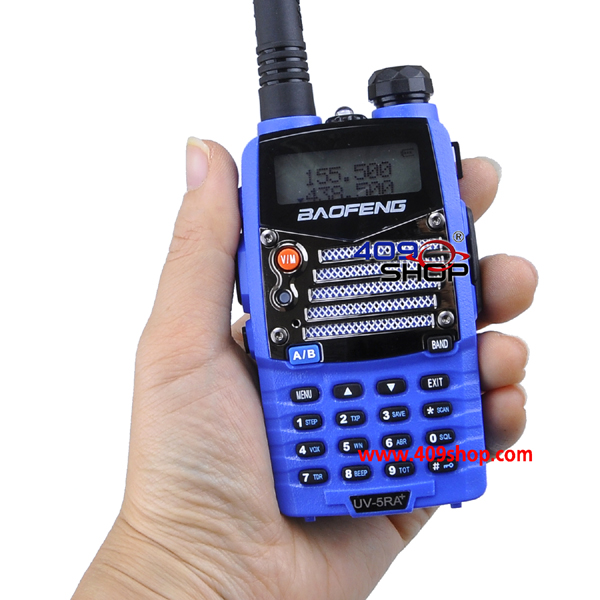
Enter a channel number from 000 to 127. However, be sure not to use a channel number that has already been programmed since the radio will not let you overwrite a stored memory. Programming over a channel with data in it will simply change that channel’s transmit frequency. Once the channel number is entered, press “Menu” again. The radio will say “Receiving memory”. Press “Exit”.
Press the “Scan/Rev” button. This will swap over the transmit and receive frequencies so that they are reversed. This is handy for listening to the repeater’s input channel, in order to determine whether a station is in simplex range or not. Press “Menu”, “2”, “7”, “Menu”. The radio will say “Memory channel”.
Enter the same memory channel you entered above in step 12. Then press “Menu” again. The radio will say “Transmitting memory”.
Press “exit”. You’ve set up a repeater channel. You will find it in your list of program channels when you switch to channel mode.Programming A Repeater With An Odd SplitAlternatively, you can specify your own transmit and receive frequencies.
In brief, you would program in the receive frequency first, then program in the transmit frequency in the same way. This may be more reliable, since only the “A” display works for programming memories, thus, the radio can only remember one offset value for programming purposes. It does not store a separate offset for VHF and UHF either.For this method, the offset value (memory 26) and offset direction (menu 25) don’t matter at all.To demonstrate, here is how you would program in the infamous 147.435 repeater in Los Angeles into memory 99. This repeater has an output frequency of 147.435 and an input frequency of 146.400, a decidedly very odd split. As there is no CTCSS tone, we won’t worry with that in this example. If in channel mode, press the VFO/Mem button to switch to Frequency Mode. Press 1, 4, 7, 4, 3, 5.
To be thorough, be sure that no CTCSS or DCS tones are set from a previous operation. Set menus 10, 11, 12, and 13 to 000. Press Menu, 2, 7, Menu. The radio will say “Channel Memory”. Then, type 0, 9, 9, Menu. The radio will say “Receiving memory”.
Press “Exit” to exit the menu. Press 1, 4, 6, 4, 0, 0. Press menu, 2, 7, menu. The radio will say “Channel memory”. Press 0, 9, 9, Menu. The radio will say “Transmit memory”.
Press “Exit”. The odd split is now programmed.Again, remember that you can use this same procedure to program standard offsets, too. As long as you know the repeater’s input and output, you can program them separately if you wish, and not worry about the repeater offset menus.
Changing Between VFO And Memory ModesYou can switch easily between VFO (“Frequency”) mode and memory (“Channel”) mode by pressing the top most button on the front of the transceiver, labeled “VFO/Mem”. The voice will tell you whether you are in “channel mode” or “Frequency mode”. Channel mode must have at least one channel programmed; there are at least two programmed from the factory, probably more. Incidentally, it’s probably a good idea to delete those channels and put your own data in them immediately. Deleting channels is done with menu 28.A channel can be directly set by entering it’s three digit number on the keypad, such as 005, 022, or 122 for channel 5, 22, or 122 respectively. The new channel number will be announced via a voice prompt. Adjusting Menu OptionsAll menu options can be adjusted from the keypad.
Baofeng Uv-5r Plus Programming Software
You can either scroll through the menu with the up/down buttons, or by directly selecting the menu option you want numerically. So that you can most easily keep track of where you are, I believe selecting options numerically is easiest, as there is, again, no audible indication of when the beginning or end of the menu is reached, and the menus wrap. Note that the menu begins with 0, not with 1. Menu 0 is the squelch adjustment.As with selecting menus, the menu options can be adjusted numerically. For instance, selecting menu 2 (to adjust the power level), press 0 for high power or 1 for low power. For offset direction (menu 25), you can select 0 for no offset, 1 for a plus offset, or 2 for a minus offset. So, as menu options below are listed, the first option is always number 0, not number 1.To adjust the menus, press the Menu key, which is the first key on the first row of the main keypad.
You will hear “Menu”, at which time you can then enter a menu number or press the up/down buttons. Once you reach the menu you want, press the Menu key again. In most, though not all cases, you will hear voice confirmation of the name of the menu item you have selected.
In the cases where you do not hear a voice confirmation, you will just hear a beep. Adjust the parameter by pressing numbers or up/down arrows. Once the menu is set correctly, press the Menu key again. You will hear the word “Confirm” spoken to indicate that the option is set. You can then choose another menu item or press the “Exit” button to exit the menu. If you do nothing for about 10 seconds, the menu will exit automatically. I assume you’re aware that dPMR is digital radio format, and the Baofeng is an analogue radio?
This Baofeng will not work as a dPMR transmitter.As it won’t work as a transmitter, I assume you’re only interested in receiving the data signals used for dPMR? If so, you won’t be able to tune to the exact frequency (which has six decimal places) as your radio only handles five decimal places. You should be able to tune very close to the precise frequency, which will let you receive the signals, but slightly off frequency.Obviously, don’t transmit – as a) you can’t transmit digital from an analogue radio, and b) you’ll be transmitting on an adjacent channel.Does that help?. Hi Chris,In the UK, the best way to get a licence is with the help of a local club. You can find your local clubs here: – If you’re in Essex, this site can help to get you in touch with a local trainer, or we can arrange for you to come along to a local event and discuss courses and the hobby in more detail.Fees vary depending on clubs – A typical Foundation course, book and exam costs £40-£70.It’s important to note that if you want to operate outside of the UK, you need to get the Full licence, which means sitting Foundation, then Intermediate. Once you have the Full licence, you can operate in other countries, but subject to the rules of that country’s radio laws and licences.This link (and video) gives you a feel for what’s involved in getting started:Does that help?. Hi, if you have not found the answer thus far then try this.1) Press menu and use the up arrow next to the menu button to select menu 14.2) Once menu 14 (voice) has been selected then press menu once more.
This will then let you use the up/down arrows to select either English/Chi or off from the screen display.3) select English then press menu again and your UV-5R is set to English.4) press menu a second time after the language is set to English and the radio will revert to the usual VFO/MR screen. You can of course just dont press anything after setting the language and the radio will revert to the usual screen setting on its own after a few seconds.If still needed I hope that helped,Bri (M6UHN). Problem with CHIRP.
My UV5RC arrived today and I congifured it OK. I programmed CHIRP with repeater freqs, but it won’t upload. It’s CHIRP 0.4.1.Problem is that it seems to be a different version to the one shown above. There’s no Communiction button. All there is is a Radio button, but with the option to Upload to Radio greyed-out.I’ve been to the Baofeng website, and have checked the firmware, BFB297. This apparently is too high for the Baofeng software, so I have to use CHIRP.Any ideas??Tnx, de m0ans / Adrian.
Would anyone be able to help me, please?Just got a UV-5R, and am having a “clicking” issue when receiving on e.g. 446 PMR.Am testing using my daughter’s (surprisingly good) cheap Binatone Action 1100 PMR446 handset for TX.When receiving this on the UV-5R, although I get very good quality for her, I also get an annoying erratic “clicking” over the top of her voice. It seems to get worse as I move the radio around, shake it, etc. There’s a few clicks every few seconds, seems quite random.This is about 30′ away down the garden, only, with her in the house.I can receive her fine, no clicking, on another Binatone, and on two Mitex PMR, without any clicking, so it would seem to be the UV-5R at fault?This happens with both the stock aerial, and an NA-701, so it’s not the aerial.Tried a few different PMR446 channels, no difference.Any suggestions please? I’m not yet familiar with the UV-5R, so perhaps I’ve got a setting wrong somewhere?thanks much indeed. Hello, I have two questions. First, I have a transceiver that that I scan with and transmit on.
LG.jpg "Plus")
When I transmit the scan mode goes off and I have to manually reset the scan button to scan mode. Is there a preset that will cause the unit to return to scan on it’s own after e few seconds when I am done transmitting?Second, depending on where I am, some channels get interferance that sounds like a fax modem or a computer modem. The channel then locks on and it is annoying. Can this be adjusted so it wont happen on the channels or must I delete the channels that do this? I have tried every squelch mode and it does not help. Hi, Just received my UV-5R, but am having issues connecting to CHIRP so wondered if anyone could help?I’ve installed the driver 31/07/07 3.2.0.0 Prolific. In Device manager all is good.
No yellow warning. It’s on Com 4.When I try to download on Com 4 (Baofeng UV-5R) I get an error “radio did not respond”It does try to get data, but the screen shows all characters, and then resets.If I unplug the USB cable from the computer while still plugged into the Baofeng, it sticks on transmit.I’ve tried different volumes on the unit from low to high, connecting in different orders to PC, plugging in powered/non-powered, plugging in on a channel in use, and not in use, but noting seems to work.Dodgy cable maybe?Many thanksNick.
I have a couple of Baofeng radios (UV-5R and BF888S) along with a couple of older FDC radios (150A and 450A) and recently tried to program in the UK PMR446 channels for receive only on the UV-5R. I noted all the options for turning off CTCSS and DCS tones in the software (I used Chirp) and progammed the frequencies with no problems.
However, with a PMR446 radio in the same room as the UV-5R, I wasn’t picking anything up on any of the 8 channels.it was only later that I noticed if I pressed the MONITOR button to defeat the squelch then it received fine.I know that the PMR446 had no tones set as the model didn’t have that option and the BF888S also programmed with the same channels in exactly the same way as the UV-5R worked fine.what am I missing here? Any ideas please. SO FRUSTRATING!!
I have the Baofeng UV-5R, I can transmit perfectly fine, and my transmissions are heard by my group fine (they use Yaesu). However, when anyone transmits to me, I can hear them, but it’s so distorted that I can’t understand what they are saying. On our close up initial radio checks, everything is fine and I hear them loud and clear.
However, once we are about 1/4 mile apart with a clear line of sight, it goes south. I added the Nagoya 717 but no improvement. We are operating on VHF 146.460. Can someone please help?.
I have a couple of Baofeng radios (UV-5R and BF888S) along with a couple of Retevis RT7 radios. The BF888s and Retevis RT7’s are programmed to the same frequencies to allow them to work together but when I program the same frequencies into my UV-5R I get nothing on receive from the other radios unless I defeat the squelch. I noted all the options for turning off CTCSS and DCS tones in the software (I have used Chirp and VIP) and progammed the frequencies with no problems. What am I missing here?? I know that the other radios are programmed with no CTCSS or DCS and the CHIRP / VIP software tells me the same for the UV-5R so I am confused.
The radios are in the same room so surely a squelch setting can’t be the reason.oh and just to confuse the situation further.the other handhelds pick up the UV-5R perfectly so it is JUST on the receive side. Any advice would be appreciated. Hi Ian,If the Baofeng can’t hear signals from the other radios, the most likely causes are either the squelch on the Baofeng is too low, or the other radios are sending CTCSS/DCS (and the Baofeng’s not set to receive them).If you’re 100% sure the other radio aren’t transmitting any tones, then check that the ‘CT’ and ‘DCS’ icons on the Baofeng screen are off.Failing that – may be that you’ve set the Baofeng into an odd mode – Back up the Baofeng’s memories (if there’s anything there you care about), then perform a reset to factory defaults. Forget the memories for a minute, and just manually tune to the frequency that the other radios are transmitting on. That will eliminate any possible programming errors or odd radio settings. Once you’re comfy the radio is working in receive mode, then try again with setting up the memoriesPete. I spent so much time getting the radio to talk to my PC, or vice versa, I thought I was going to go mad as it was so frustrating.
I tried all the recommened fixes, old drivers, new drivers, volume up/down, switch off-plug in-switch on and all combinations thereof, sitting down, standing on my head – well you get the idea.But I did stop at cutting the connector to fit the radio as in my case this clearly wasn’t necessary and anyway I can’t be trusted with a knife!However for the benefit of others I seem to have found a simple way to overcome these issues that works, at least in my case. It tends to disprove all the other theories but there you go.My method was based on the idea that maybe there was some data ‘up the pipe’ when I tried to run CHIRP which was getting in the way of the protocol as it was obvious the program was trying to talk to the radio but failing. Without the benefit of a data stream trace, this was just a guess based on my long, hard won, experience with serial communications.So this is how I do it.Connect up the radio via the USB cable to your PC and switch it on – I don’t think it matters a jot which way you do this. Run CHIRP and, as a test, trying sending or receiving data to/from the radio (Radio menu Download/Upload). If it works, great, if it doesn’t (and here comes the secret slightly techy bit), go into Device Manage on your PC, locate the driver under Ports (Prolific USB-to-serial-bridge in my case), right click and disable it. Then, having done that, right click again and enable it!
Simple eh?Now try uploading/downloading (as you wish) from the radio again with CHIRP.In my case with limited testing this works every time whereas before with all the tests I did my success rate was worse than that of winning a million on the lottery – and no I haven’t in case you are wondering.Of course this won’t cure ‘other’ issues but it may just help those of you who, like me, were going round in ever decreasing circles!73s. In scanning mode i listen to two separate towns on the same frequency but on different ctcss tones. I have the two towns entered on separate channels in the radio with their own pl codes. However if town 1 is talking and my radio scans and stops on town 2 first, different pl code, it stops on town 2, with no audio, until town 1 stops transmitting. It appears, unlike other radios, that the pl codes only stop the squelch from opening up but still stop and hang up on the channel anyway. Any ideas on a fix for this problem?.
I have UV5R And for some reason I can transmit however I cannot share anything coming over the radio. When I program different channels I don’t hear the beeps I don’t sure and for some reason I can transmit however I cannot share anything coming over the radio. When I program different channels I don’t hear the beeps I don’t through the beep, The automated voice, When I switch from channel mode to memory mode. Maido have programs or hit a button that I need to change on the radio itself so that I can hear the automated voice or hear transmissions?Can someone help me with this.